
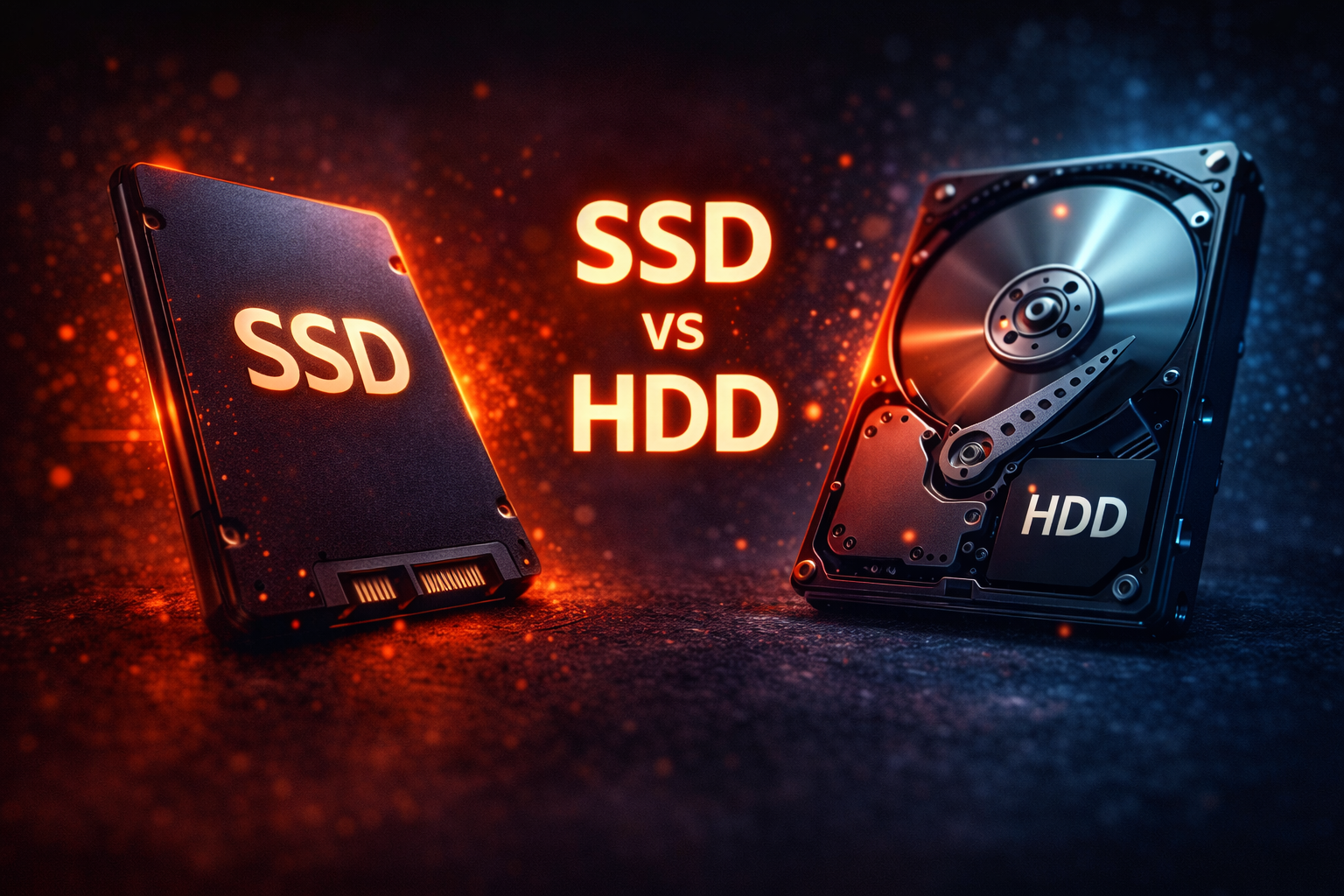
Choosing the right storage drive is one of the most impactful decisions you’ll make for your computer.
It affects everything: boot times, application loading, file transfers, gaming performance, video editing workflows, and overall system responsiveness. Yet many people still don’t understand the fundamental differences between SSDs (Solid State Drives) and HDDs (Hard Disk Drives).
The storage landscape has evolved dramatically. SSDs have plummeted in price while HDDs continue to offer massive capacities at budget-friendly rates. According to Statista’s market research, SSD shipments surpassed HDD shipments in 2023 for the first time in history, signaling a major industry shift.
But does that mean HDDs are obsolete? Not necessarily.
In this comprehensive guide, I’ll break down everything you need to know about SSDs and HDDs in 2026—their technology, performance, pricing, lifespan, and most importantly, which one you should choose for your specific needs.
Understanding the Technology: How They Actually Work
Before comparing performance and price, let’s understand what makes these drives fundamentally different.
How Hard Disk Drives (HDDs) Work
HDDs are mechanical devices that have been around since 1956. Think of them as high-tech record players.
Components:
- Platters: Spinning magnetic disks (typically 3.5″ for desktops, 2.5″ for laptops)
- Read/write heads: Magnetic heads that float nanometers above the platters
- Actuator arm: Positions the heads over the correct location
- Spindle motor: Spins platters at 5,400-7,200 RPM (some high-performance drives reach 10,000-15,000 RPM)
How data is stored:
When you save a file, the read/write head magnetizes specific areas of the spinning platter. To read data, the head detects the magnetic orientation of those areas. The mechanical arm must physically move to the right location, then wait for the platter to rotate to the exact spot—this seeking and rotational delay is why HDDs are slower.
Key characteristics:
- Moving parts = vulnerable to physical shock
- Mechanical operation = generates heat and noise
- Rotational speed directly impacts performance
- Sequential reads/writes are decent, random access is slow
How Solid State Drives (SSDs) Work
SSDs are entirely electronic with no moving parts. Think of them as sophisticated USB flash drives.
Components:
- NAND flash memory chips: Store data electronically
- Controller: Manages data placement, wear leveling, and error correction
- DRAM cache: (On higher-end models) Speeds up operations
- Firmware: Software that optimizes drive operations
How data is stored:
SSDs use NAND flash memory cells that trap electrical charges. Each cell can hold one or more bits depending on the type (SLC, MLC, TLC, QLC). The controller determines where to write data, manages wear leveling (distributing writes evenly), and handles garbage collection.
Key characteristics:
- No moving parts = resistant to physical shock
- Electronic operation = silent, generates minimal heat
- Random access is extremely fast
- Limited write endurance (but practically sufficient for most users)
Types of SSDs:
SATA SSDs:
- Use same SATA interface as old HDDs
- Max speed: ~550 MB/s (limited by SATA III interface)
- Form factor: 2.5″ drives
- Cheapest SSD option
NVMe SSDs (M.2):
- Connect directly to PCIe lanes
- Max speed: 3,500-7,500+ MB/s (Gen 3-5)
- Form factor: M.2 stick (small, no cables)
- High-performance option
PCIe Gen Comparison:
- Gen 3: Up to 3,500 MB/s
- Gen 4: Up to 7,000 MB/s
- Gen 5: Up to 14,000 MB/s (cutting-edge in 2026)
According to Tom’s Hardware’s SSD benchmark database, modern NVMe Gen 4 SSDs can be 10-15x faster than HDDs in real-world scenarios.
Performance Comparison: The Speed Difference
Let’s look at real-world performance differences across various metrics.
Boot Time
HDD: 30-90 seconds to desktop SATA SSD: 10-20 seconds to desktop NVMe SSD: 5-10 seconds to desktop
Winner: NVMe SSD by a landslide
The difference is immediately noticeable. An SSD transforms the boot experience from “go make coffee” to “blink and you’re ready.”
Application Loading
Adobe Photoshop launch time:
- HDD: 15-30 seconds
- SATA SSD: 3-5 seconds
- NVMe SSD: 2-3 seconds
Microsoft Office applications:
- HDD: 5-10 seconds
- SATA SSD: 1-2 seconds
- NVMe SSD: <1 second
Gaming load times (large open-world games):
- HDD: 60-120 seconds
- SATA SSD: 15-30 seconds
- NVMe SSD: 10-20 seconds
Winner: SSDs dramatically reduce application load times, with NVMe having a slight edge over SATA.
File Transfer Speeds
Sequential read/write (large files):
| Drive Type | Read Speed | Write Speed |
|---|---|---|
| HDD (7200 RPM) | 80-160 MB/s | 80-160 MB/s |
| SATA SSD | 500-550 MB/s | 450-520 MB/s |
| NVMe Gen 3 | 3,000-3,500 MB/s | 2,500-3,000 MB/s |
| NVMe Gen 4 | 5,000-7,000 MB/s | 4,500-6,500 MB/s |
| NVMe Gen 5 | 10,000-14,000 MB/s | 9,000-12,000 MB/s |
Random read/write (small files):
This is where SSDs truly dominate. Random access performance:
- HDD: 0.5-2 MB/s (IOPS: 50-200)
- SSD: 200-500 MB/s (IOPS: 50,000-500,000)
Real-world impact:
Copying a 100GB video file:
- HDD to HDD: ~15-20 minutes
- SATA SSD to SATA SSD: ~3 minutes
- NVMe Gen 4 to NVMe Gen 4: ~15-20 seconds
Winner: NVMe SSDs for sequential, all SSDs demolish HDDs for random access.
Gaming Performance
Load times:
According to PC Gamer’s gaming storage tests, SSDs can cut game loading times by 50-80% compared to HDDs.
Example: Cyberpunk 2077 initial load:
- HDD: 90 seconds
- SATA SSD: 25 seconds
- NVMe Gen 4: 18 seconds
In-game performance:
- Texture streaming: SSDs eliminate stuttering in open-world games
- Level transitions: Near-instant vs 30+ second waits
- Asset loading: Reduces pop-in and texture loading delays
DirectStorage (Windows 11):
Microsoft’s DirectStorage API allows games to load assets directly to GPU, bypassing CPU. This feature requires NVMe SSDs and can further reduce load times by 2-3x in supported games.
Winner: NVMe SSD for modern gaming, SATA SSD is acceptable, HDD creates frustrating delays.
Video Editing and Content Creation
4K/8K video editing:
Working with high-resolution footage:
- HDD: Stuttering playback, long export times, frequent buffering
- SATA SSD: Smooth playback up to 4K, manageable exports
- NVMe SSD: Smooth 8K playback, fast exports, multiple video streams
Adobe Premiere Pro export times (10-minute 4K video):
- HDD: 15-20 minutes
- SATA SSD: 8-10 minutes
- NVMe Gen 4 SSD: 5-6 minutes
3D rendering and CAD:
Large project files (500MB+):
- HDD: 30-60 seconds to open
- SATA SSD: 5-10 seconds
- NVMe SSD: 2-5 seconds
Winner: NVMe SSD essential for professional work, SATA SSD acceptable for hobbyists.
Durability and Shock Resistance
Physical shock tolerance:
- HDD: Extremely vulnerable—even a small drop while running can cause head crashes and permanent data loss
- SSD: Highly resistant—no moving parts means they can survive drops, vibration, and movement
According to Backblaze’s drive reliability data, SSDs have lower failure rates than HDDs, though both are reliable when properly maintained.
Operating conditions:
- HDD: Should not be moved while powered on, sensitive to vibration
- SSD: Can be used in laptops, portable drives, and rugged environments
Winner: SSD for durability, especially for laptops and portable use.
Noise and Heat
Noise levels:
- HDD: Audible spinning, clicking, and seeking sounds (30-35 dB)
- SSD: Completely silent (0 dB)
Heat generation:
- HDD: Moderate heat from motor and friction
- SATA SSD: Minimal heat
- NVMe SSD: Can get warm under heavy load (may need heatsink)
Winner: SSDs are silent, though high-performance NVMe drives may need cooling.
Power Consumption
Average power draw:
- HDD (3.5″): 6-10 watts active, 1-2 watts idle
- HDD (2.5″ laptop): 2-4 watts active, 0.5-1 watt idle
- SATA SSD: 2-4 watts active, 0.1-0.5 watts idle
- NVMe SSD: 3-8 watts active, 0.05-0.2 watts idle
Impact on battery life:
For laptops, SSDs can extend battery life by 30-60 minutes compared to HDDs, according to AnandTech’s laptop testing.
Winner: SSDs use less power, especially at idle, improving laptop battery life.
Price Comparison: Cost Per Gigabyte in 2026
Storage prices have changed dramatically over the years. Here’s what you can expect to pay in 2026.
Current Price Points
HDDs (3.5″ Desktop Drives):
| Capacity | Price | Price/TB |
|---|---|---|
| 1 TB | $35-45 | $35-45 |
| 2 TB | $50-60 | $25-30 |
| 4 TB | $75-90 | $19-23 |
| 8 TB | $130-160 | $16-20 |
| 12 TB | $200-240 | $17-20 |
| 16 TB | $270-320 | $17-20 |
| 20 TB | $350-420 | $18-21 |
SATA SSDs (2.5″):
| Capacity | Price | Price/TB |
|---|---|---|
| 500 GB | $30-40 | $60-80 |
| 1 TB | $50-70 | $50-70 |
| 2 TB | $90-120 | $45-60 |
| 4 TB | $200-280 | $50-70 |
NVMe SSDs (M.2 Gen 3):
| Capacity | Price | Price/TB |
|---|---|---|
| 500 GB | $35-50 | $70-100 |
| 1 TB | $55-80 | $55-80 |
| 2 TB | $100-140 | $50-70 |
| 4 TB | $220-320 | $55-80 |
NVMe SSDs (M.2 Gen 4):
| Capacity | Price | Price/TB |
|---|---|---|
| 500 GB | $45-60 | $90-120 |
| 1 TB | $70-100 | $70-100 |
| 2 TB | $120-170 | $60-85 |
| 4 TB | $280-400 | $70-100 |
Price trends:
According to DRAMeXchange market reports, SSD prices have dropped approximately 40-50% from 2022 to 2026, while HDD prices have remained relatively stable.
The sweet spot in 2026:
- Budget: 1-2 TB SATA SSD (~$60-120)
- Performance: 1-2 TB NVMe Gen 4 (~$70-170)
- Capacity: 4-8 TB HDD for storage (~$75-160)
Long-Term Cost Analysis
Total Cost of Ownership (TCO):
When calculating true cost, consider:
- Energy costs: SSDs use less power over 5 years
- Replacement frequency: HDDs typically need replacement after 3-5 years, SSDs after 5-10 years
- Time value: Faster drives = productivity gains
Example 5-year TCO (1TB drive):
HDD:
- Drive cost: $45
- Power (5 years at $0.12/kWh): ~$35
- Replacement (year 4): $45
- Total: ~$125
SATA SSD:
- Drive cost: $60
- Power (5 years): ~$8
- Replacement: Likely none needed
- Total: ~$68
Winner: SSDs actually cost less over time despite higher upfront cost.
Lifespan and Reliability
A critical consideration often overlooked in the SSD vs HDD debate.
HDD Lifespan
Average lifespan: 3-5 years with regular use
Failure modes:
- Mechanical wear (motor bearings, actuator arm)
- Head crashes (contact with platter)
- Platter surface degradation
- Electronic component failure
According to Backblaze’s 2024 Hard Drive Stats, the average annual failure rate for HDDs is approximately 1.35%, with failure rates increasing significantly after year 4.
Factors affecting lifespan:
- Operating temperature (>45°C significantly reduces life)
- Power-on hours
- Physical shock and vibration
- Number of start/stop cycles
MTBF (Mean Time Between Failures):
- Consumer HDDs: 600,000-1,000,000 hours
- Enterprise HDDs: 1,200,000-2,000,000 hours
SSD Lifespan
Average lifespan: 5-10+ years with typical use
Failure modes:
- NAND flash wear-out (limited write cycles)
- Controller failure
- Capacitor/electronic component failure
- Firmware corruption
Write endurance:
SSDs wear out based on total data written, measured in TBW (Terabytes Written).
TBW ratings by NAND type:
- SLC (Single-Level Cell): 100,000+ write cycles (enterprise only, expensive)
- MLC (Multi-Level Cell): 10,000-20,000 write cycles
- TLC (Triple-Level Cell): 3,000-5,000 write cycles (most common)
- QLC (Quad-Level Cell): 1,000-2,000 write cycles (budget SSDs)
Real-world endurance example:
A typical 1TB TLC SSD rated for 600 TBW means:
- 600 TB total can be written before wear-out
- Writing 50 GB daily = 12,000 days (~33 years) before exhaustion
- Typical user writes 10-20 GB daily = 80-160+ years theoretical life
According to studies by Tech Report’s SSD Endurance Experiment, SSDs routinely exceed their rated endurance by 2-10x.
MTBF:
- Consumer SSDs: 1,500,000-2,000,000 hours
- Enterprise SSDs: 2,000,000-3,000,000 hours
Backblaze’s findings:
In Backblaze’s SSD reliability report, SSDs showed an annual failure rate of just 0.92%, lower than HDDs at 1.35%.
Winner: SSDs are more reliable and last longer for typical users.
Warning Signs of Failure
HDD warning signs:
- Clicking or grinding noises
- Frequent freezing or stuttering
- Slow file access
- Increasing bad sectors (check SMART data)
- Disappearing files or corruption
SSD warning signs:
- System crashes when reading/writing
- Files won’t save or become corrupted
- Read-only mode activation
- Increasing number of bad blocks (check SMART data)
- Decreasing performance over time
Monitoring tools:
- CrystalDiskInfo (Windows) – Free SMART monitoring
- DriveDx (Mac) – SSD/HDD health monitoring
- Built-in manufacturer tools (Samsung Magician, Western Digital Dashboard, etc.)
Use Case Recommendations
Now that we understand the technology, performance, and pricing, let’s determine which drive is right for specific scenarios.
Operating System and Applications
Recommendation: NVMe SSD (Gen 3 minimum, Gen 4 preferred)
Why:
- Dramatically faster boot times
- Instant application launches
- System feels responsive and snappy
- Windows/macOS run significantly better
Minimum size: 500 GB (Windows + applications) Recommended size: 1 TB (room for growth)
Specific recommendations:
- Budget: Crucial P3 1TB Gen 3 (~$60)
- Mainstream: Samsung 980 PRO 1TB Gen 4 (~$90)
- High-end: WD Black SN850X 2TB Gen 4 (~$150)
Do NOT use HDD for: Your operating system. The performance penalty is too severe.
Gaming
Primary recommendation: NVMe SSD (1-2 TB)
Why:
- Modern games are 50-150 GB each
- Fast loading times enhance experience
- DirectStorage API requires NVMe
- Eliminates texture streaming stutters
Capacity planning:
- Casual gamer (3-5 games): 500 GB-1 TB
- Regular gamer (10-15 games): 1-2 TB
- Enthusiast (20+ games): 2-4 TB
Hybrid approach for large libraries:
- Primary: 1-2 TB NVMe SSD (for frequently played games)
- Secondary: 4-8 TB HDD (for game library storage)
- Move games between drives as needed
Recommended SSDs for gaming:
- Best value: WD Black SN770 2TB (~$130)
- Best performance: Samsung 990 PRO 2TB (~$170)
- Budget: Kingston NV2 1TB (~$55)
When HDD is acceptable: Game library storage for titles you play occasionally. Just be prepared for 60+ second load times.
Video Editing and Content Creation
Recommendation: Tiered storage approach
Setup:
- NVMe Gen 4 SSD (1-2 TB): OS, applications, active projects
- NVMe Gen 4 SSD (2-4 TB): Project scratch disk/cache
- Large HDD (8-16 TB): Archived projects and raw footage library
Why this works:
- Active projects on NVMe for real-time editing
- Completed projects moved to HDD storage
- Total cost lower than all-SSD approach
- Performance where it matters
Specific workflows:
4K Video Editing:
- Minimum: 2TB NVMe Gen 4 for working files
- Recommended: 4TB NVMe Gen 4 + 8TB HDD archive
8K Video or RAW Photography:
- Minimum: 4TB NVMe Gen 4 + 12TB HDD
- Professional: Multiple NVMe drives + NAS storage
Recommended for creators:
- Working drive: Samsung 990 PRO 2TB
- Cache drive: WD Black SN850X 4TB
- Archive: Seagate IronWolf 12TB
Backup and Archive Storage
Recommendation: Large HDD (4-20 TB)
Why:
- Cost per TB is significantly lower
- Backups don’t need speed
- Large capacities available
- Good for write-once, read-rarely scenarios
Backup strategy:
- Primary backup: 4-8 TB external HDD
- Cloud backup: Backblaze or similar
- Archive: Large internal HDD for long-term storage
Recommended backup drives:
- External: WD Elements Desktop 8TB (~$140)
- Internal: Seagate Barracuda 4-8TB (~$75-160)
- NAS: WD Red Plus 8TB (~$170)
When to use SSD for backup:
- Frequently accessed files
- Need fast restoration times
- Portable backup that travels
- Budget allows
Office Work and General Use
Recommendation: 500GB-1TB SATA or NVMe SSD
Why:
- Adequate capacity for documents, photos, email
- Dramatically faster than HDD
- Silent operation (important in office)
- Lower power consumption
Capacity planning:
- Light user (documents only): 250-500 GB
- Average user (photos, documents, light media): 500 GB-1 TB
- Heavy user (large photo library): 1-2 TB
Budget recommendations:
- Value: Crucial MX500 1TB SATA (~$60)
- Performance: WD Blue SN580 1TB NVMe (~$65)
When HDD is acceptable: Never for primary drive. Only consider for extra storage if budget is extremely tight.
Laptops and Portable Devices
Recommendation: NVMe SSD (mandatory)
Why:
- Shock resistance (laptops get moved, dropped)
- Better battery life
- Silent operation
- Compact form factor (M.2)
- Heat efficiency
Capacity for laptops:
- Ultrabook/travel laptop: 500 GB-1 TB
- Desktop replacement: 1-2 TB
- Gaming laptop: 1-2 TB
Never use HDD in laptop because:
- Vulnerable to damage from movement
- Shorter battery life
- Adds weight
- Makes laptop slower and less responsive
Laptop upgrade recommendations:
- Standard upgrade: Samsung 980 1TB (~$70)
- Performance upgrade: SK hynix Platinum P41 1TB (~$90)
- Budget upgrade: Kingston NV2 500GB (~$35)
Servers and NAS
Recommendation: Hybrid approach or all-HDD
Setup:
- SSD: OS, databases, frequently accessed files
- HDD (RAID): Mass storage, media libraries, backups
Why HDDs still dominate here:
- Cost per TB critical for multi-drive arrays
- 24/7 operation favors enterprise HDDs
- RAID provides redundancy
- Massive capacities needed (100+ TB total)
NAS-specific recommendations:
- NAS drives: WD Red Plus or Seagate IronWolf series
- Cache SSD: Western Digital Red SSD 500GB-1TB
- High-performance: Seagate IronWolf Pro 7200 RPM
When to go all-SSD NAS:
- Small business with high I/O demands
- Database servers
- Virtual machine hosts
- Budget allows (~5-10x cost of HDD NAS)
Budget Builds
Recommendation: Single SATA or entry-level NVMe SSD
Why:
- Best performance per dollar
- Transforms even cheap systems
- 500GB-1TB adequate for most users
- Can add HDD later if needed
Budget hierarchy:
- Minimum viable: 256GB SATA SSD (~$25)
- Recommended: 500GB NVMe Gen 3 (~$35-40)
- Sweet spot: 1TB NVMe Gen 3 (~$55-70)
Don’t make this mistake: Buying a large HDD instead of smaller SSD to “get more space.” The performance penalty isn’t worth it.
Budget build recommendations:
- Absolute minimum: Kingston A400 480GB SATA (~$30)
- Better value: Crucial P3 500GB NVMe (~$35)
- Best for budget: WD Blue SN570 1TB (~$60)
The Hybrid Approach: Best of Both Worlds
For many users, the optimal solution isn’t choosing one or the other—it’s using both strategically.
Recommended Hybrid Configurations
Configuration 1: Desktop/Gaming PC
- 1TB NVMe SSD (OS, applications, active games): $70-100
- 4TB HDD (game library, media, files): $75-90
- Total: $145-190
Benefits:
- Fast system and frequently used applications
- Ample storage for large libraries
- Cost-effective
Configuration 2: Content Creator
- 1TB NVMe SSD (OS, applications): $70-100
- 2TB NVMe SSD (active projects): $100-140
- 8TB HDD (archived projects): $130-160
- Total: $300-400
Benefits:
- Maximum performance for active work
- Large archive capacity
- Organized workflow
Configuration 3: Home Office/Family PC
- 1TB NVMe SSD (OS, applications, documents): $70-100
- 4TB HDD (photo library, videos, backups): $75-90
- Total: $145-190
Benefits:
- Responsive system
- Room for growing media libraries
- Budget-friendly
Managing a Hybrid Setup
Best practices:
✅ Install Windows/macOS on SSD – Always ✅ Install applications on SSD – Performance matters ✅ Keep active projects on SSD – Files you’re currently working on ✅ Move completed projects to HDD – Free up SSD space ✅ Store media libraries on HDD – Music, old photos, movies ✅ Keep recent photos on SSD – For quick editing/sharing ✅ Use HDD for backups – Cost-effective redundancy
Windows-specific tips:
Change default save locations:
- Settings → System → Storage → Change where new content is saved
- Set new documents, photos, videos to HDD
- Keep apps and games on SSD
File organization:
SSD (C:):
├── Windows
├── Program Files
├── Users/[Name]/Documents (active work)
└── Games (frequently played)

HDD (D:):
├── Media Library
├── Archive
├── Backups
└── Games Library (less played)
Future-Proofing Your Storage Decision
Technology evolves quickly. Here’s what to consider for long-term planning.
Emerging Technologies
PCIe Gen 5 SSDs
Already available in 2026, Gen 5 SSDs offer:
- Speeds up to 14,000 MB/s (double Gen 4)
- Higher power consumption and heat
- Premium pricing
- Limited real-world benefit for most users
Is Gen 5 worth it in 2026?
- For most users: No, Gen 4 is more than sufficient
- For professionals: Maybe, if working with massive files
- For gaming: No practical benefit yet
Recommendation: Gen 4 remains the sweet spot for performance and value.
3D NAND Advancements
SSD manufacturers continue stacking more layers:
- Current: 176-232 layers
- Future: 300+ layers
- Result: Higher capacities, lower costs, better endurance
QLC and PLC (Penta-Level Cell)
Lower cost per GB but reduced endurance:
- QLC: Good for read-heavy workloads (game storage, media)
- PLC: Emerging, very cheap, suitable for cold storage only
Recommendation: Stick with TLC for primary drives, QLC acceptable for secondary storage.
HDD Technology Developments
HAMR (Heat-Assisted Magnetic Recording):
- Enables 20+ TB in 3.5″ form factor
- Seagate’s HAMR drives reaching market
- Keeps HDDs competitive for mass storage
Recommendation: HDDs will remain relevant for high-capacity needs through 2026 and beyond.
Upgradeability Considerations
When buying in 2026, ensure:
✅ M.2 slots support Gen 4 or 5 – Future-proof motherboard choice ✅ Multiple M.2 slots – Room to add drives later ✅ SATA ports available – For adding HDDs ✅ Adequate cooling – High-performance NVMe drives need airflow ✅ Tool-free drive bays – Easy upgrades
Laptop considerations:
- Check if storage is upgradeable (some have soldered SSDs)
- Verify maximum supported capacity
- Consider laptops with dual M.2 slots
When to Upgrade
Signs you need more/faster storage:
For SSD:
- Consistently >80% full (performance degrades)
- Running out of space for applications
- Want faster load times (upgrading from SATA to NVMe)
- SMART warnings indicating wear
For HDD:
- Making unusual noises (clicking, grinding)
- Frequent errors or corruption
- SMART warnings indicating failure
- Simply too slow compared to modern standards
Upgrade priority:
- OS drive to NVMe SSD (if on HDD or SATA) – Biggest impact
- Add secondary SSD for applications/games
- Add HDD for mass storage
- Upgrade to higher-capacity SSD when prices drop
Common Myths and Misconceptions
Let’s debunk some persistent storage myths.
Myth 1: “SSDs wear out too quickly”
Reality: Modern SSDs far outlast their warranty periods in typical use.
For a 1TB drive with 600 TBW rating:
- Writing 50 GB daily = 33 years to wear out
- Actual user average: 10-20 GB daily = 80-165 years
Tech Report’s endurance test ran SSDs until failure—most lasted beyond 2 petabytes written, 3-10x their rating.
Myth 2: “You need to defragment SSDs”
Reality: Never defragment SSDs. It provides zero benefit and wastes write cycles.
SSDs have uniform access times—location doesn’t matter. Windows 10/11 automatically disables defragmentation on SSDs and enables TRIM instead.
Myth 3: “HDDs are more reliable for long-term storage”
Reality: Both can fail; both need backups. SSDs are actually more reliable overall.
- SSD annual failure rate: 0.92%
- HDD annual failure rate: 1.35%
Myth 4: “Filling an SSD reduces its lifespan”
Reality: Partially true, but overblown concern.
SSDs perform best with 10-20% free space, but wear is determined by total data written, not capacity usage. Keeping an SSD 80% full doesn’t “wear it out faster”—it just may perform slightly slower.
Myth 5: “NVMe is overkill for gaming”
Reality: Partially true currently, increasingly false.
DirectStorage API in Windows 11 specifically benefits from NVMe speeds. Future games will increasingly leverage this technology. Plus, NVMe prices have dropped to near-SATA levels—why not get the faster option?
Myth 6: “SSDs lose data when unpowered”
Reality: Both SSDs and HDDs can lose data unpowered, but it takes years.
SSDs retain data for 1-7 years unpowered (depending on drive quality and temperature). HDDs can experience magnetic decay over similar timeframes. For active use, neither is a concern.
Environmental and Sustainability Considerations
An often-overlooked aspect of the SSD vs HDD debate.
Energy Consumption
Lifetime energy use (5 years):
HDD (3.5″):
- Active: 6-10W
- Idle: 2-3W
- Annual: ~35-60 kWh
- 5-year total: 175-300 kWh
- Cost at $0.12/kWh: $21-36
SATA SSD:
- Active: 2-3W
- Idle: 0.5W
- Annual: ~8-12 kWh
- 5-year total: 40-60 kWh
- Cost at $0.12/kWh: $5-7
Energy savings: SSDs use 70-85% less power than HDDs.
Environmental impact:
Lower energy consumption means:
- Reduced carbon footprint
- Lower cooling requirements
- Decreased heat generation in data centers
E-Waste Considerations
Product lifespan:
- HDDs: 3-5 years typical
- SSDs: 5-10+ years typical
Longer SSD lifespan means less frequent replacement and reduced e-waste.
Recycling: Both SSDs and HDDs contain recyclable materials (metals, plastics), but proper e-waste disposal is critical for both.
Resources:
- Earth911 Recycling Search – Find e-waste recycling centers
- Best Buy Recycling Program – Free electronics recycling
Final Recommendations: Decision Matrix
Here’s a quick decision guide based on your primary use case.
Choose NVMe Gen 4 SSD If:
✅ Building new PC or upgrading laptop ✅ Primary use: Gaming, video editing, or professional work ✅ Want maximum performance ✅ Budget allows ($70-170 for 1-2TB) ✅ Value time savings and productivity
Best picks:
- Value: WD Black SN770 1TB
- Performance: Samsung 990 PRO 1TB
- Budget: Crucial P3 Plus 1TB
Choose SATA SSD If:
✅ Older system without M.2 slot ✅ Upgrading laptop with only 2.5″ bay ✅ Budget is tight but need SSD performance ✅ Don’t need absolute maximum speed
Best picks:
- Best value: Crucial MX500 1TB
- Performance: Samsung 870 EVO 1TB
- Budget: Kingston A400 960GB
Choose HDD If:
✅ Need 4+ TB capacity ✅ Budget per GB is critical concern ✅ Archival/backup storage ✅ Media library storage ✅ NAS or server use
Best picks:
- Desktop: Seagate Barracuda 4-8TB
- NAS: WD Red Plus 4-8TB
- Backup: WD Elements 8TB
Hybrid Setup (Recommended for Most):
✅ Desktop with multiple drive bays ✅ Want performance AND capacity ✅ Reasonable budget ($150-300)
Configuration:
- 1TB NVMe SSD (OS, apps): $70-100
- 4TB HDD (storage): $75-90
Conclusion: The Clear Winner for 2026
If you’ve read this far, you know the answer isn’t simple. But here’s the bottom line:
For your primary drive (OS and applications): SSD is not optional—it’s mandatory.
The performance difference is too dramatic to ignore. Even budget SSDs are 5-10x faster than HDDs. In 2026, there’s simply no reason to run your operating system on a hard drive.
For storage: It depends on your needs.
- Need speed: SSD
- Need capacity: HDD
- Need both: Hybrid approach
The industry has spoken: SSD shipments now exceed HDDs, prices continue to drop, and performance continues to improve. Within 5 years, HDDs may be relegated entirely to specialized archival and backup roles.
My personal recommendation for 2026:
Budget builds (<$100 storage):
- 1TB NVMe Gen 3 SSD only
Standard builds ($150-250 storage):
- 1TB NVMe Gen 4 SSD + 4TB HDD
Performance builds ($300+ storage):
- 2TB NVMe Gen 4 SSD + 8TB HDD
- OR 4TB NVMe Gen 4 SSD only
The future is solid state. But HDDs still have their place for cost-effective mass storage. Use each where it excels, and you’ll have the perfect balance of performance and capacity.
Your next computer deserves an SSD. Your data deserves proper storage. Now you know exactly which drive to choose.
Essential Resources:
- Tom’s Hardware SSD Benchmarks – Performance comparisons
- UserBenchmark – Real-world performance data
- CrystalDiskInfo – Drive health monitoring
- r/NewMaxx’s SSD Guide – Community expert recommendations
- PCPartPicker – Price tracking and compatibility
- Backblaze Drive Stats – Reliability data